
The virtual tour is now available online via your Google Local page and via the Google Street View service. You can now embed it on your website by following these steps:
1. Open and search for your business on Google Maps: https://www.google.ca/maps/
2. Click on the “interior” tab which takes you into your Street View virtual tour. Once in your virtual tour, place the view at the angle you want the 360 image to be placed on your website.
3. At the top left of your screen, you will notice three small overlapping dots, Click and you will have the option to Share or embed the image.

share or embed the image
4. You will now have the choice of a link to your visit or Embed Image.
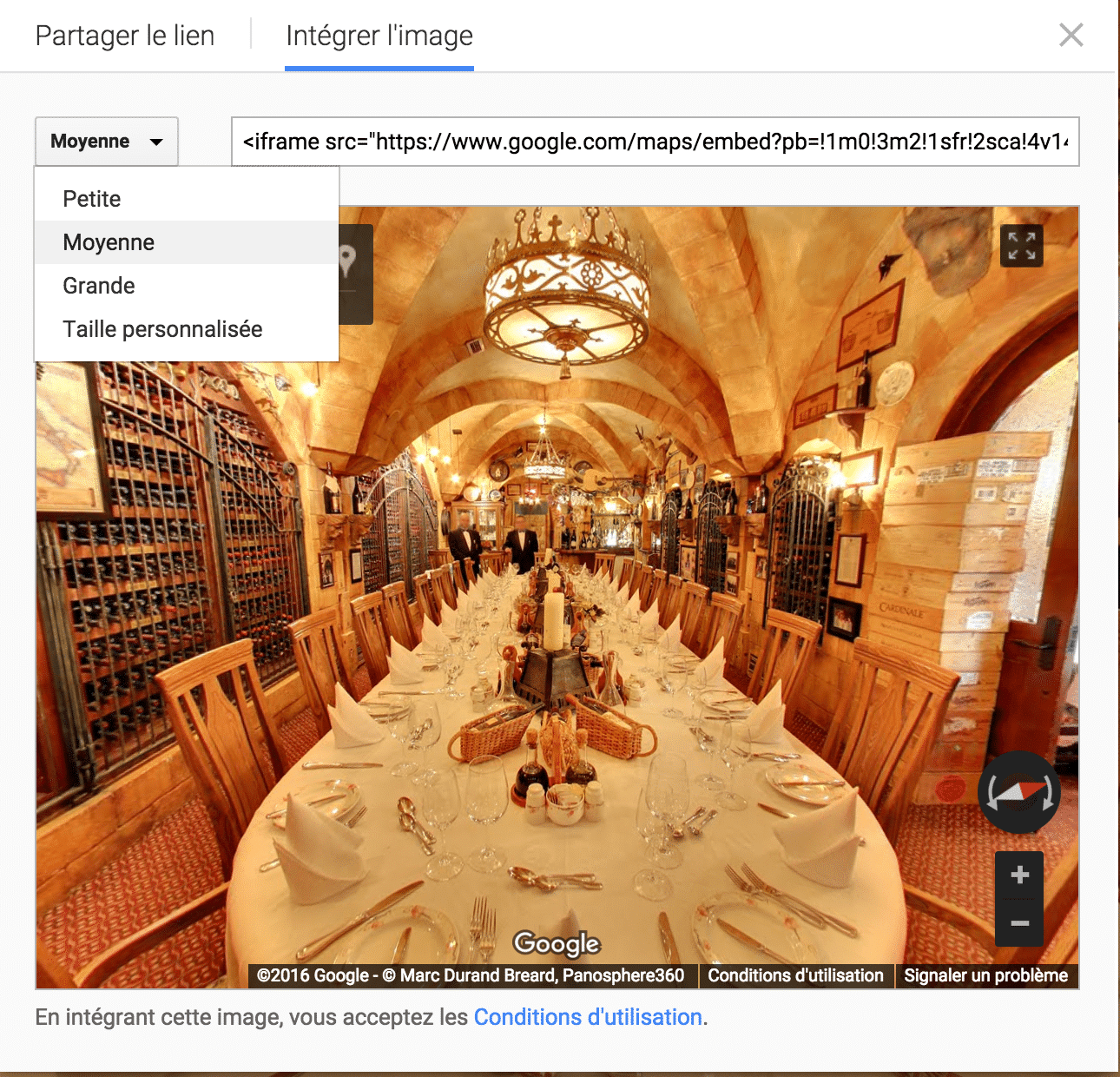
5. Once Embed Image selected , I suggest you click the button mean to the left of the line where the html coding you need for your site. Then choose custom size. You will therefore have the option of choosing the dimensions you want for your site.
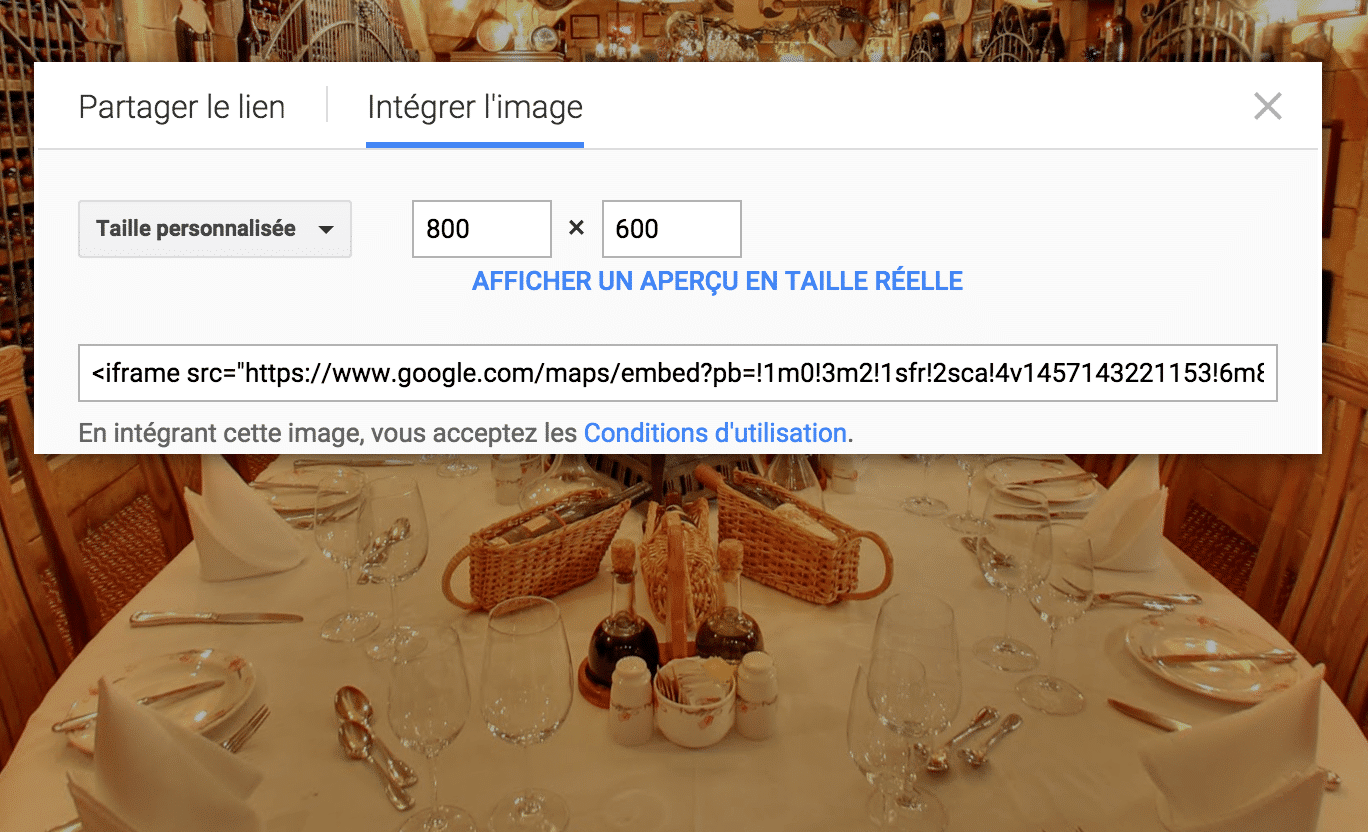
6. Copy the html coding to the place you want on your website.